4. Chapter 1: Upload Data to ThingSpeak
ThingSpeak is IoT platform for user to gather real-time data; for instance, climate information, location data and other device data. In different channels in ThingSpeak, you can summarize information and visualize data online in charts and analyze useful information.
ThingSpeak can integrate IoT:bit (micro:bit) and other software/ hardware platforms. Through IoT:bit, you can upload sensors data to ThingSpeak (e.g. temperature, humidity, light intensity, noise, motion, raindrop, distance and other device information).
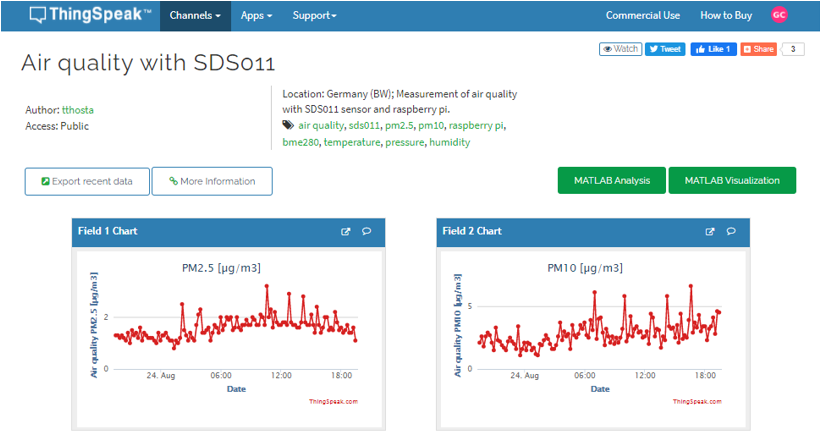
4.1. Thingspeak Configuration
Goal:
we need to create the thingspeak channel and get the keyStep 1
Go to https://thingspeak.com/, register an account and login to the platform
Step 2
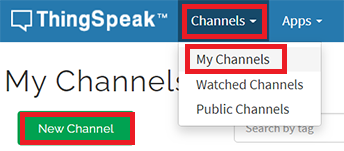
Choose Channels -> My Channels -> New Channel
Step 3
Input Channel name, Field1 , then click “Save Channel”
Channel name: smart-house
Field 1: Temperature
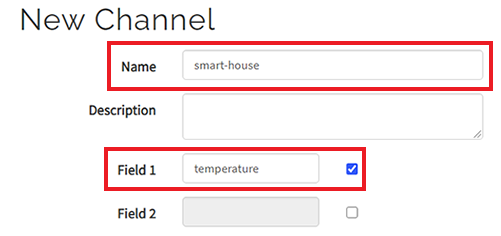
Step 4
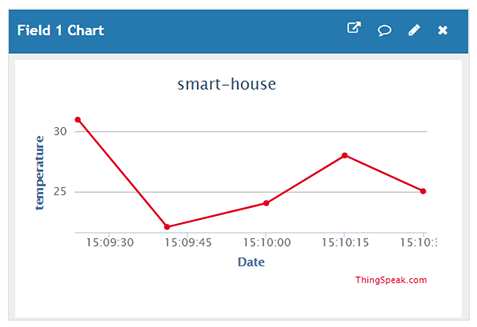
You will see a chat for data field1
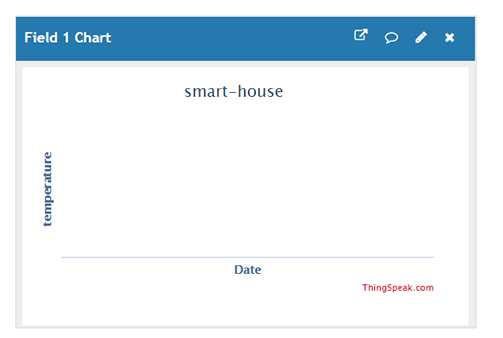
Step 5
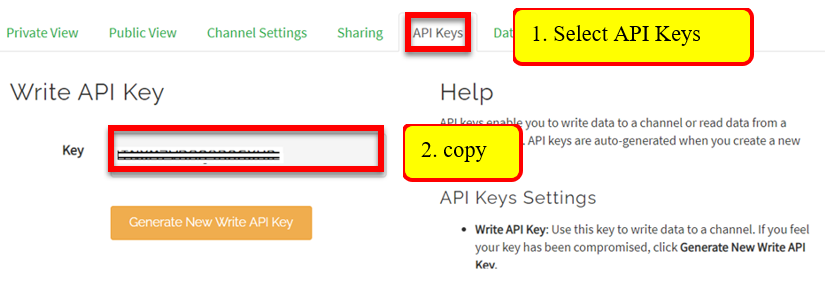
Open your web browser, go to https://thingspeak.com , select your channel > “API Keys” ,copy the API key as follows:
4.2. Coding (Makecode)
Step 1
Before we do the thingspeak uploading part, we already know how to connect to the WiFi on the first chapter.
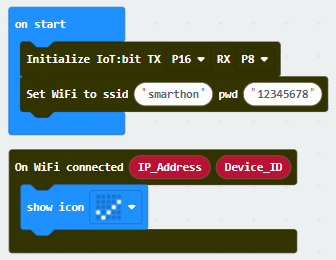
Step 2
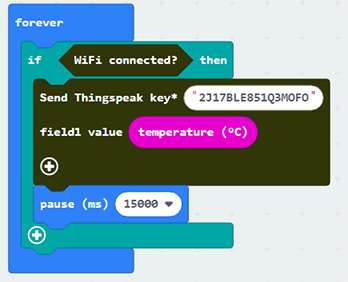
On every 15 seconds, if the WiFi is connected, it will send data to ThingSpeak.
Use
if-statementinside theforeverloop to checkWiFi connected?statusSnap the
Send Thingspeak key.....block inside theif-statementFill in the
api keyfrom Thingspeak and thetemperaturevaluesSnap
pauseto the loop to wait 15 second
Step 3
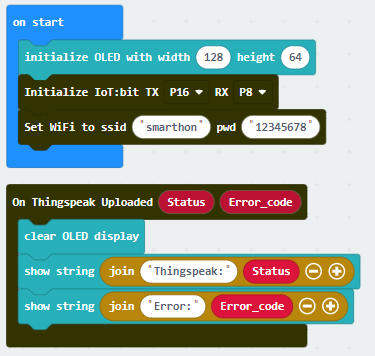
If you want to show the thingspeak status, you can use the on Thingspeak Uploaded handler to get the variable for status and error code. You may use the OLED to display the status and error code.
Go to OLED Tab
Snap
initialize OLED with width 128 height 64toon startSnap the
show stringinside theOn Thingspeak UploadedDraw the variable from
On Thingspeak Uploadedto theshow stringblock placeholder.
Full Solution
MakeCode: https://makecode.microbit.org/S50897-87530-58227-65452
You could also download the program from the following website:
4.3. Result
After Connected to Internet, the program start upload the data to Thingspeak.
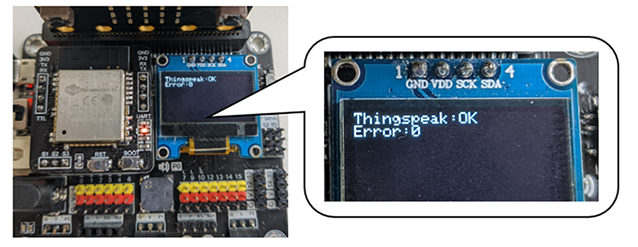
When the Upload is finish, it will shown the status OK and Error Code 0.
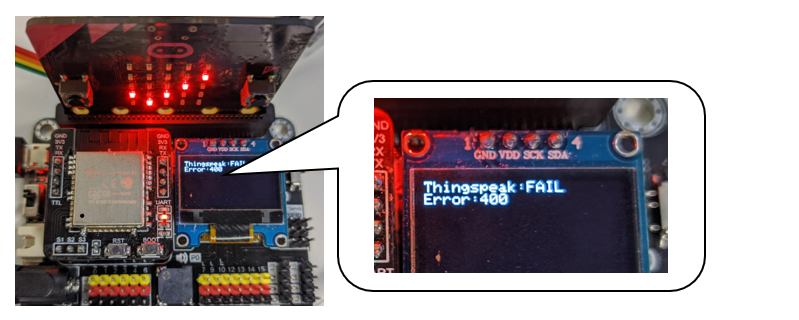
If the thingspeak cannot be uploaded successfully, the status will return FAIL with error code.
For the error 400, the user inputted the wrong API Key. For the error code -28674, there is no internet connection.
The charts in your channel in ThingSpeak will be updated.