5. Chapter 2: Send Email by IFTTT
IFTTT is the way to connect hundreds of the apps and devices, including Twitter, Dropbox, Email, Google Assistant, etc. By the basic programming logic “if this then that”, it connects IoT services through their API (application programming interface).
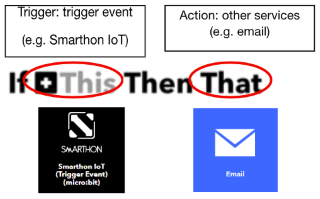
In IFTTT, you can make your own applet and link services together by “if this(trigger) then that(action)”. For example, if we select webhooks (micro:bit button A) as trigger, Email (send email to your mailbox) as action. When micro:bit button A is pressed, it triggers (webhooks) and implement the action (send email) in IFTTT.
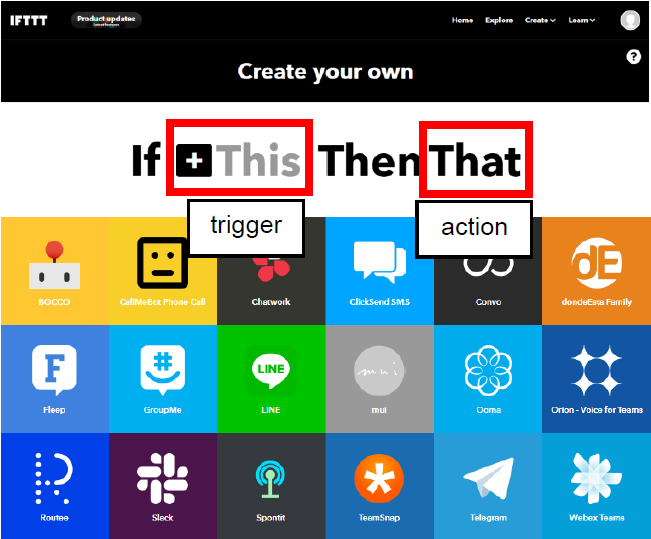
In this chapter, you will learn using micro:bit to activate trigger (webhooks). After that, it can implement other services (e.g. email)
5.1. Coding (Makecode)
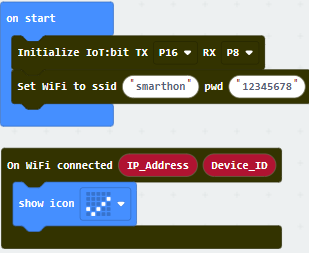
Step 1: Connect WiFI
Before we try to use WiFi Control function, we need to connect to the network, we have already know how to connect to the WiFi on the first chapter.
Step 2: Get Device ID
On WiFi connected is an event handler. It will be triggered once after connected with WiFi. The handler will provide the Device ID variable which used to identify and control the Microbit.
Go to OLED Tab
Snap
initialize OLED with width…height..toon startSnap the
show stringinside theOn WiFi connectedDraw the
Device IDvariable fromOn WiFi connectedto theshow stringblock placeholder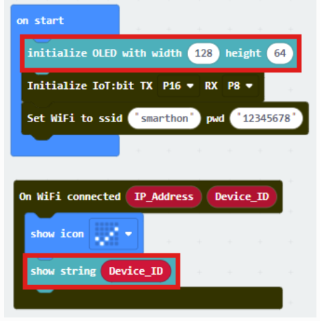
*If you worried about forget the Device ID during program running, you may access it by the variable under Control tab
Go to Control tab
Snap the
Device IDvariable to the placeholder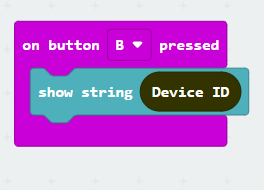
Step 3: Send IFTTT request
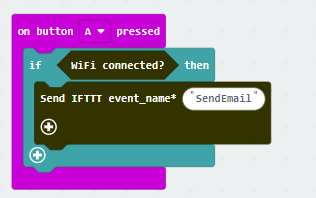
When need to send IFTTT request, if WiFi connected, send data to IFTTT.
Input the following data of the IFTTT Application to the Send IFTTT event name… block
event_name: event name to trigger in Webhooks (eg. SendEmail)value 1-3: if user want to add the value inside the email, click the add button and input value1, value2, value3
Step 4: Check IFTTT upload status
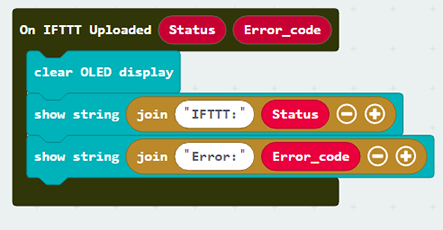
If you want to show the IFTTT upload status, you can use the “on IFTTT Uploaded” handler to check the variable. You may use the OLED to display the status and error code.
Snap the
show stringinside theOn IFTTT UploadedDraw the variable from
On IFTTT Uploadedto theshow stringblock placeholder
Full Solution
MakeCode: https://makecode.microbit.org/S72229-35443-84797-10160
You could also download the program from the following website:
5.2. IFTTT Configuration
Goal:
Create appletStep 1
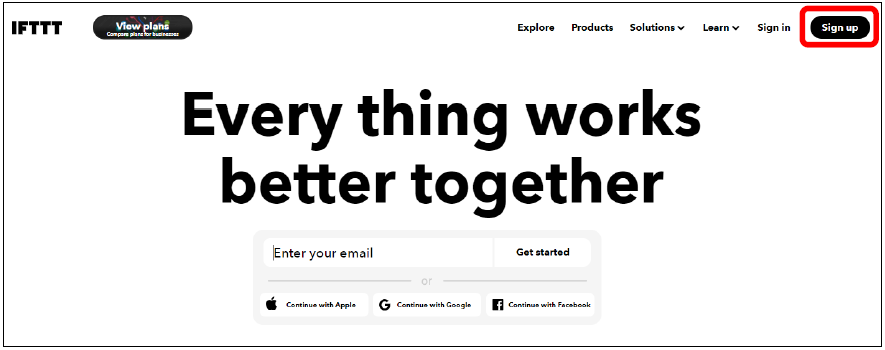
Go to http://www.ifttt.com, register an account and login to the platform
Step 2
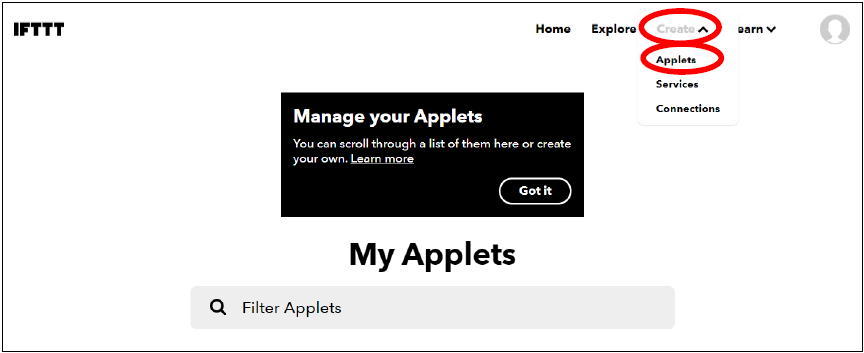
On the top right menu, click “Create” > “Applets”
Step 3
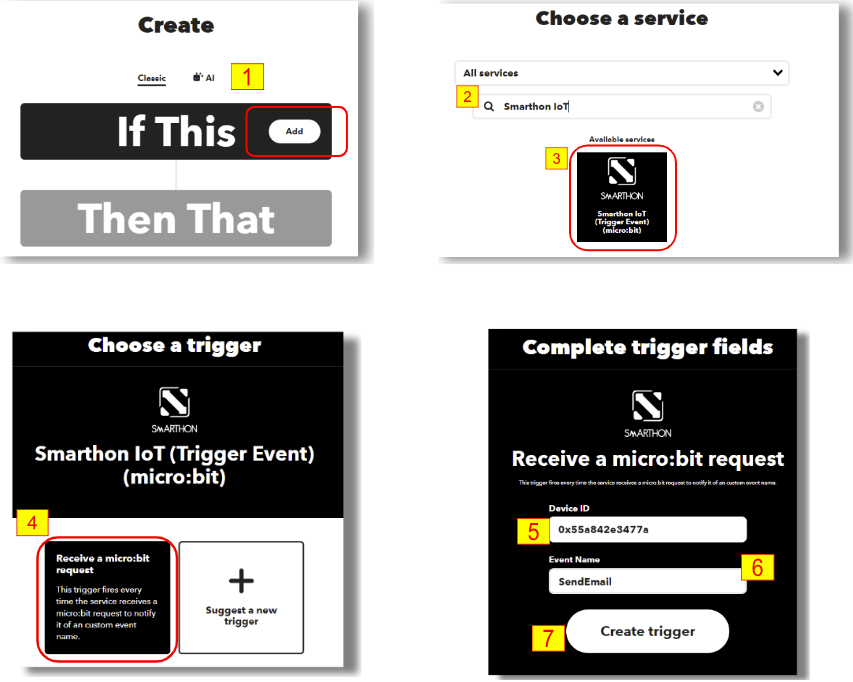
Select this
Select Smarthon IoT
Input Device ID and Event Name. (eg. Device ID: 0x55a842e3477a, Event Name: SendEmail)
Click “Create trigger”
Step 4
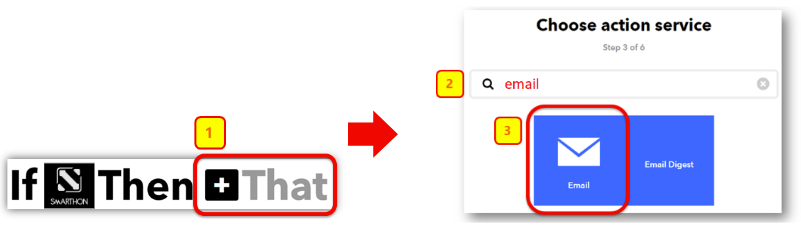
Select “That” > Email > Email
Step 5
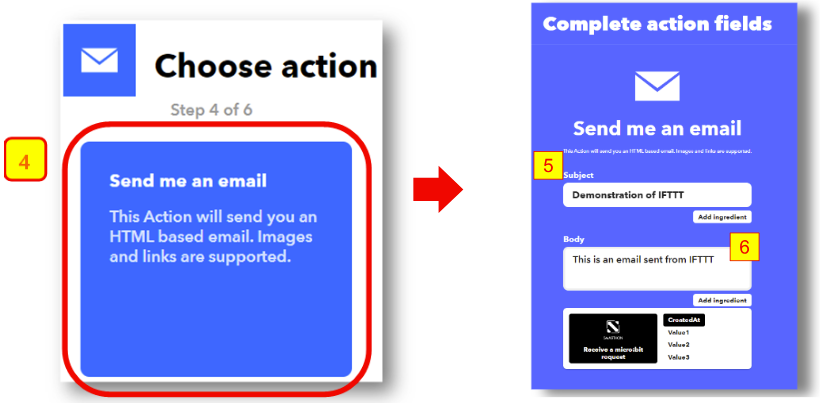
Select “Send me an email” , Input email title and body, then click “Create action”
5.3. Result
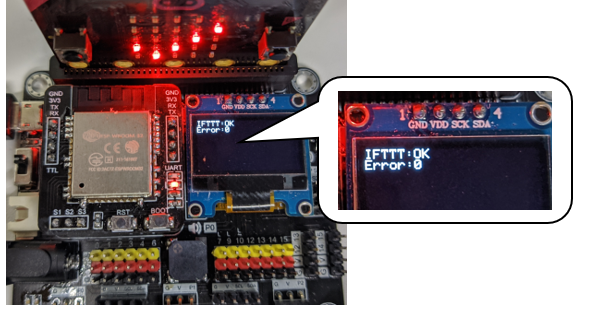
After micro:bit is connected to WiFi and click button A, it will upload data to IFTTT.
If the upload is success, it will show OK with error code 0
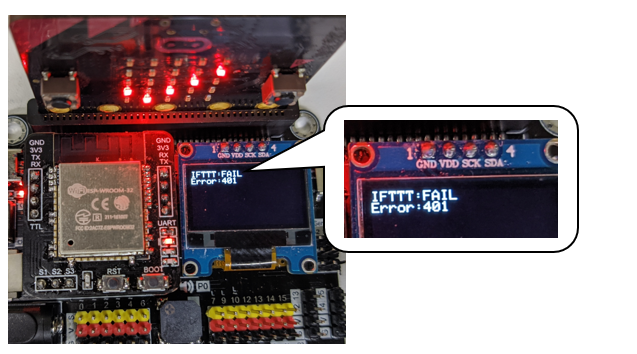
If the upload is fail (such input wrong API key in this case), it will show FAIL with error code.
For the error 401, the user inputted the wrong API Key. For the error code -28674, there is no internet connection.
When success, email will be sent to your mailbox by IFTTT.
